Below, Rusted Gods Accessibility & Comfort
What playtesters requested—not a guarantee every toggle ships day one.
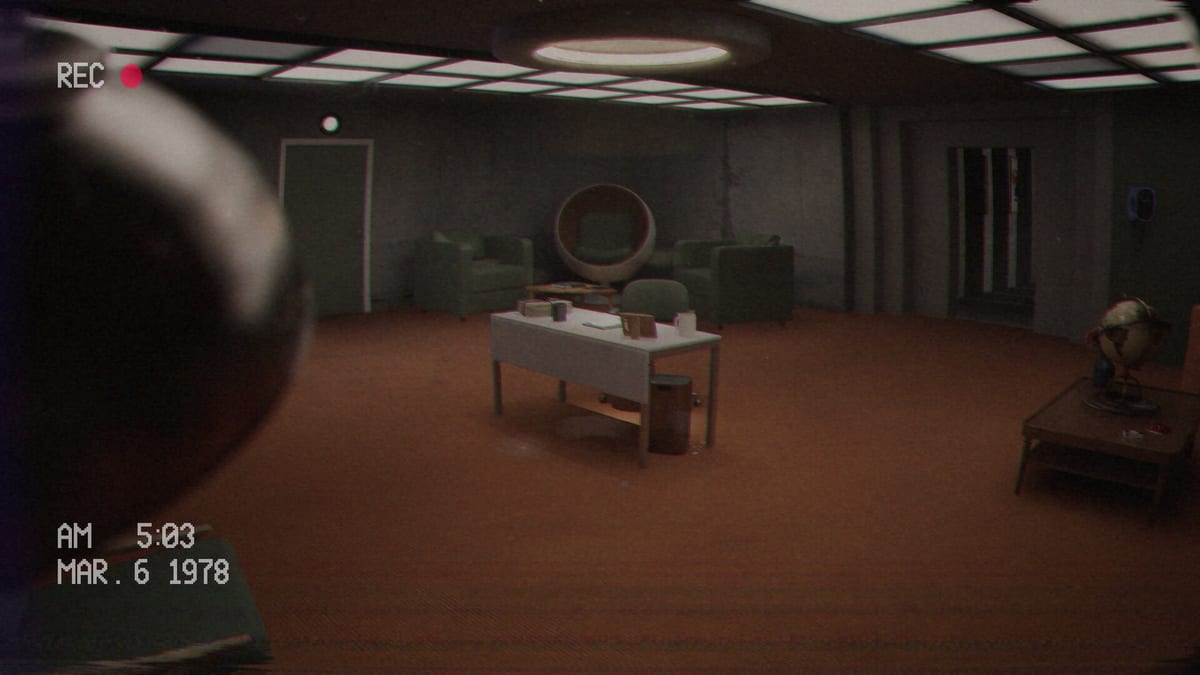
Below, Rusted Gods is a first-person Operator horror sim: desk work, facility walks, CRT glow, and audio-forward progression. Steam lists accessibility-related store tags—including camera comfort and color alternatives—but the most actionable pre-launch detail comes from playtest feedback and Steam discussion threads, where Operators asked for specific QoL improvements. This page collects those player-requested comfort themes so you know what to look for in the options menu after July 29, 2026 unlock. It does not guarantee every request shipped; always verify in your retail copy on launch day.
How to use this page
- Open the in-game Settings / Options menu after install.
- Compare available toggles against the themes below.
- If a requested feature is missing, note your build ID and report via official channels—Discord & Community.
- Track post-launch additions on Patch Notes.
This is a launch-eve checklist of asks, not a fabricated settings manual.
Motion blur sensitivity
Playtest and discussion posts frequently mention motion blur discomfort during facility segments and desk-to-corridor transitions. Operators with simulation sickness asked for a blur toggle or reduction slider.
What to check at launch: Graphics or camera sections for motion blur, film grain, or similar post-processing tied to head movement. Full graphics and audio pass: Graphics & Settings. If blur remains forced, try limiting frame variance (System Requirements) and taking breaks during exploration beats—Facility Exploration.
Text legibility on monitors and logs
Operator gameplay depends on reading instrument labels, log printouts, and terminal text under stress. Playtesters requested larger monitor text and clearer log typography—especially on the primary monitoring bank and medical readouts (Life Support & Squad).
What to check at launch: UI scale, subtitle size, or dedicated CRT text options. See Graphics & Settings for May 2025 QoL themes. On Steam Deck Verified hardware, default scale was acceptable in Valve’s review—Steam Deck Verified—but PC ultrawide and 4K setups may still want scaling tweaks.
Pair visual clarity with Supported Languages if localized UI text renders incorrectly after language changes.
Audio device and channel visibility
Headphones are mandatory for progression (Headphones & Audio), but Windows and Steam can route audio to the wrong device silently. Discussion threads mention wanting clearer audio device numbering or in-game confirmation of output device—especially when multiple USB interfaces appear.
What to check at launch: In-game audio device dropdowns (if present) plus OS-level default device before launching. Run the audio section of the Day-One Checklist on unlock morning. Rebind only after audio is honest—Controls.
Head sway and camera comfort
First-person head bob or sway during facility walks bothered some playtesters—particularly during long shifts combining desk stillness with corridor movement. Requests centered on head sway reduction or camera stabilization toggles.
What to check at launch: Camera comfort, view bob, or accessibility sections Steam tags hint at. Details on Graphics & Settings. If sway remains, slow movement during exploration and avoid sprinting unless the story demands it.
Objective clarity and indicator visibility
Because progression often flows through audio verbs rather than glowing quest markers, some Operators asked for clearer objective indicators when authorized tasks require leaving the desk—without turning the game into a waypoint shooter.
What to check at launch: Subtitle emphasis, optional hint frequency, or UI highlights on interactable panels. Until you confirm toggles, rely on checklist discipline (Operator Checklist) and How to Progress When Stuck rather than assuming broken quests.
Medical console layout (comfort adjacent)
Playtest feedback also flagged medical console layout friction—walking around the desk to read printed output. That is documented on Life Support & Squad as spatial QoL, not purely graphics. Verify whether retail rearranged panels; note build ID if reporting.
Steam store accessibility tags versus playtest asks
Steam’s accessibility section lists features such as camera comfort options and color alternatives. Playtest threads add blur, text size, sway, objectives, and audio device clarity. The union is your search list in Options—nothing more.
We will not invent slider names or claim “definitely added” without patch notes. Patch Notes updates when FromSouthGames confirms changes.
Platform-specific notes
Windows PC
Confirm resolution scaling does not shrink CRT text. Full-screen versus borderless can affect readability during dark desk scenes. Spec guidance: System Requirements.
Steam Deck
Verified status (July 20, 2026) implies default controls and readable UI at default scale. Still use headphones; still verify comfort toggles after first retail boot—Steam Deck Verified.
Related pages
- System Requirements — hardware baseline for stable comfort
- Steam Deck Verified — handheld readability context
- Headphones & Audio — audio clarity beyond device labels
- Controls — rebind after changing devices
- Life Support & Squad — medical console layout feedback
- Graphics & Settings — graphics, audio, and performance knobs at launch
- Day-One Checklist — unlock-morning settings pass
Comfort settings protect the fantasy—they do not replace listening.
Reporting gaps respectfully
If a playtest-requested toggle is missing at launch, report with build ID, platform, and expected vs actual—see Bug Report Guide. Avoid duplicate threads; link Patch Notes when hotfixes land.
What this page will not do
- Guarantee feature parity with playtest builds
- List fake slider names
- Replace medical or psychological advice for horror content—Steam lists mature descriptors; plan sessions accordingly (Release & Demo)
Launch eve reminder (Jul 28, 2026)
Retail unlocks in roughly twenty-two hours. Metacritic and Steam user reviews remain pending at launch eve—comfort preferences will evolve as players publish settings guides. Revisit this page after Patch Notes document official QoL changes.
Hubs
Tools, Overview, Guides, Systems, Updates. Store facts: Release & Demo. Tone: Review. News: Launch News. Community: Discord & Community.
Check the menu. Trust your ears. Adjust until the desk feels survivable.
Frequently Asked Questions
Quick answers for operators preparing for the descent.
Are these settings confirmed for launch?
This page lists playtester requests and Steam accessibility tags—not guaranteed day-one toggles. Verify in your copy after unlock.
Where do I report missing comfort options?
Use official Steam discussions or developer Discord links on [Discord & Community](/tools/discord-and-community/) with build ID and repro steps.
Does Steam Deck change accessibility?
Deck Verified implies readable default UI, but comfort toggles still need in-game verification—see [Steam Deck Verified](/overview/steam-deck/).
Is motion blur required?
Playtesters asked for a toggle; check Graphics/Camera options at launch. We do not claim it is forced or removed without patch notes.
What if text is still too small?
Try UI scale, resolution, or OS scaling first. Note build ID and report if retail lacks requested text size options.